Settings
After activating the Automatic Exporter, the settings for exporting the file either manually or automatically are configured while creating or editing an export under Import/Export, in the Export Type step.
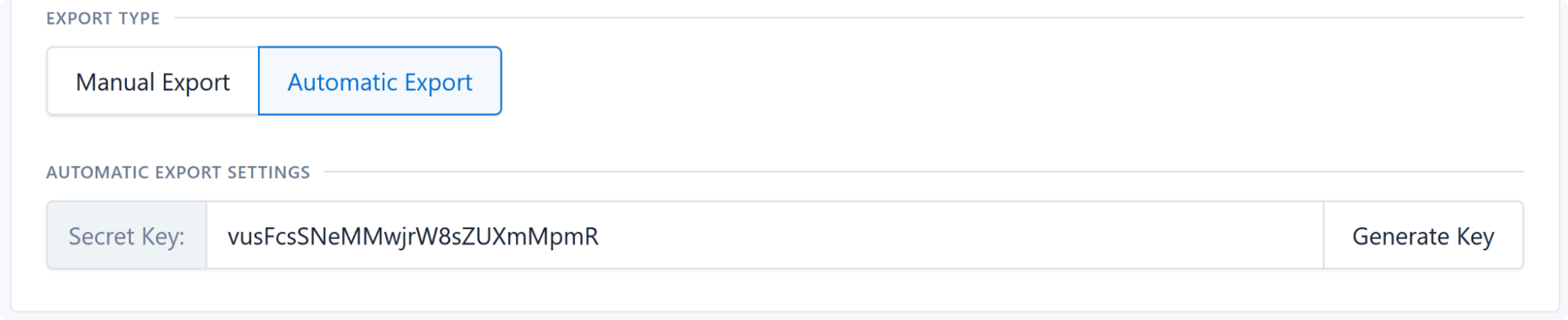
Export Type
- Manual Export — the default. The export only runs when you press the button.
- Automatic Export — reveals the secret key field below and generates a cron command when you save.
Unlike the Automatic Importer, there is no restriction on the source: any export you can build works on a schedule, whether it writes a file locally or pushes it over FTP. The delivery method is part of the export's own configuration and is unchanged by this extension.
Note
Switching an export back to Manual Export discards its automatic settings, including the secret key. Re-enabling automatic mode means generating a new key and updating your cron entry.
Secret Key
After selecting Automatic Export the secret key field appears. Set this to a secure string — either generate one with the Generate Key button or create a custom one — so that only you or your server can export the inventory.
Anyone holding both the export ID and this key can trigger the export and receive its output, so treat it like a password:
- Prefer Generate Key over typing something guessable.
- Changing the key invalidates the previously generated command. Copy the new command into your cron entry.
- Your export may contain pricing, cost, or customer-facing data you don't want scraped. The key is the only thing protecting that URL.
Identifying automatic runs
Exports saved as automatic get an Automatic badge in the import/export log, so you can tell scheduled runs apart from ones you started by hand.
Once saved, continue to Scheduling the Export.