Using a Content Divider
Once you have a content divider created you can edit your SRP template, and within the All Listings element you will be able to choose which content divider should be used within this list:
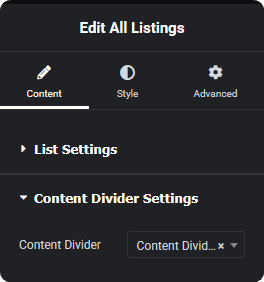
The setting lives in a Content Divider Settings tab on the element, under the content options. The dropdown lists every Content Divider template built for that listing type, plus a Choose a Divider placeholder meaning none.
One divider per listing grid
The All Listings element takes a single divider. The frequency and width come from the divider template itself, so a divider used on two different SRPs behaves identically on both.
To vary the interval — say every 6 on one page and every 12 on another — build two divider templates and pick a different one on each SRP.
Turning it off
Set the dropdown back to Choose a Divider and save. The divider template stays where it is and can be re-attached later; nothing is deleted.
With AJAX pagination and filtering
Dividers keep working when listings load without a page reload — filtering, sorting, or paging through results. Each freshly loaded set of listings gets its dividers inserted the same way.
The count restarts with each batch of results loaded, so a divider set to every 6 appears after the 6th listing of each load rather than the 6th overall.
Ideas for what to put in one
- A finance or trade-in call to action partway down a long results page.
- A current promotion or seasonal sale banner.
- A "can't find what you're looking for?" block linking to a contact form or vehicle-finder.
- Testimonials or a review widget, breaking up an otherwise uniform grid.
- A link to a related inventory type — trailers on a truck SRP, for instance.