Adding a PDF Link
A configured template generates nothing on its own — visitors need something to click. There are two ways to give them one.
Using the dynamic tag
When building your listing template, use [dms_pdf_link] anywhere you can drag the dynamic value badges, and it's replaced with the download link automatically.
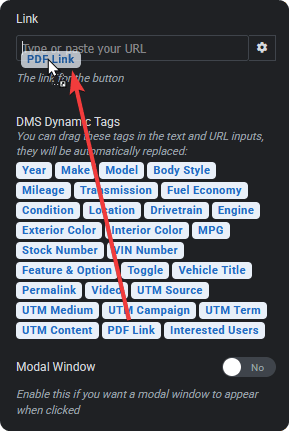
After dragging you'll see this value:
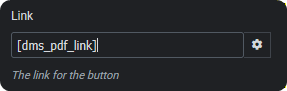
This is the usual approach: drop it into a button element's link field on your VDP template, label the button Download Brochure or Print This Vehicle, and style it like any other button.
Because it's a standard dynamic tag, it works anywhere those badges are accepted.
Using the shortcode
A dms_pdf_download shortcode is also available for placing a download trigger directly:
Useful where you want the trigger in content rather than in a builder element.
Where to put it
On the VDP, near the other actions — enquiry, finance, share. A customer downloading a brochure is usually in the same frame of mind as one about to make contact.
Think about what the PDF is for when labelling it. "Download Brochure" suits a customer taking details away; "Print Window Sheet" suits internal use on the lot. The same file can serve both, but the label sets the expectation.
What the visitor experiences
Clicking the link builds the PDF in their browser and downloads it. On a long template at high resolution this takes a few seconds, and progress is shown while it runs.
Two things follow from that:
- Nothing opens in a new tab and nothing is stored — the file goes straight to their downloads.
- A slow phone is slower. If your customers are largely mobile, test on a mid-range phone rather than a desktop before settling on Ultra resolution.
If the link does nothing
The most common cause is no PDF template being selected for that listing type — the engine only loads on listing pages where one is configured. See Settings and Troubleshooting.