Settings
Automatic importing is configured on the import itself, during the File Upload step of the import wizard.
Choose a downloadable source
Select Download a File as the import type. Automatic importing isn't possible with local files uploaded from your computer — a scheduled run has no file to re-read, so the source has to be a URL DMS can fetch each time.
Once Download a File is selected, an Import Type choice appears:
- Manual Import — the default. The import only runs when you press the button.
- Automatic Import — reveals the automatic settings below and generates a cron command when you save.
Note
Switching an import back to a non-download type removes its automatic settings.
Automatic Import Settings
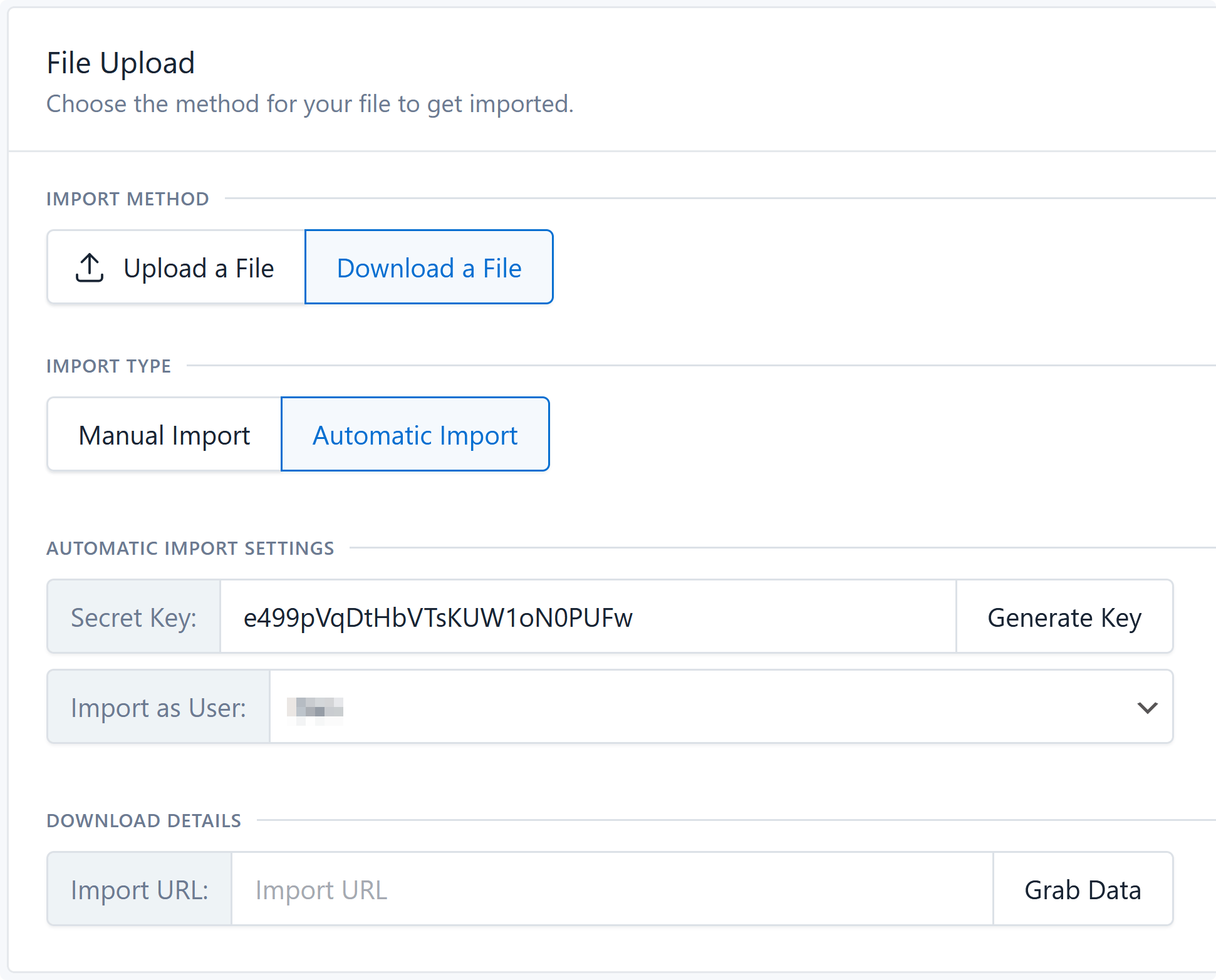
Secret Key
The secret key verifies that only you or your server can trigger the import. Anyone who has both the import ID and this key can start the import, so treat it like a password.
- Use Generate Key to produce a random value rather than typing something guessable.
- The import will not run if the key is blank — a stored key is required before any automatic run is accepted.
- Changing the key invalidates the previously generated command. Copy the new command into your cron entry.
Import as User
New and updated listings are attributed to the user you choose here. The dropdown lists administrators by default.
Developers can change which users are offered with the dms_automatic_importer_user_args filter, which receives the arguments passed to get_users():
add_filter( 'dms_automatic_importer_user_args', function ( array $args ): array {
  $args['role__in'] = [ 'administrator', 'editor' ];

  return $args;
} );
Identifying automatic runs
Imports saved as automatic get an Automatic badge in the import/export log, so you can tell scheduled runs apart from ones you started by hand.
Once saved, continue to Scheduling the Import.