Creating a Content Divider
To create a content divider, go to your inventory type and Templates. Click the Add New button, then select Content Divider from the create template modal:
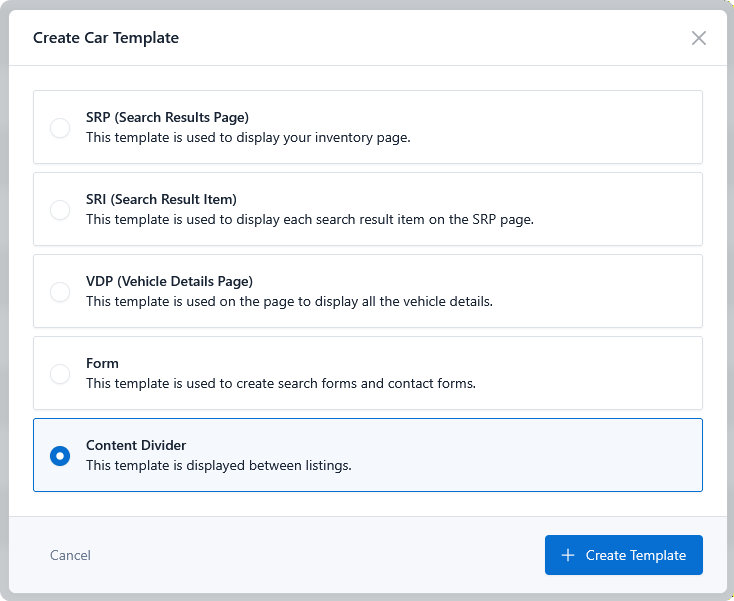
Content Divider joins the other template types available for that listing type. Templates belong to a type, so a divider built under Cars is offered only to Cars SRPs.
Divider settings
After creating your Content Divider template you can set the template data to display the divider every X listings and how wide the divider is:
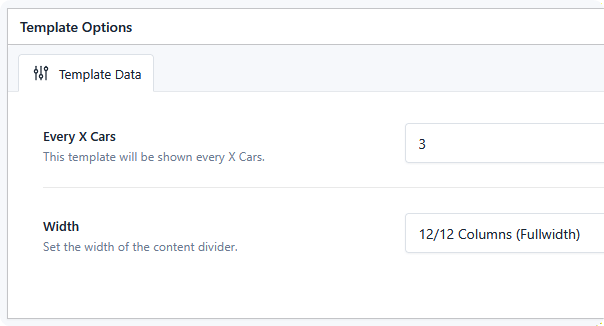
These two settings appear in the template's own options sidebar, and only for Content Divider templates.
Every X listings
How often the divider is inserted. The label uses your listing type's plural name, so it reads Every X Cars or Every X Boats.
The divider appears after that many listings and then repeats — after the 6th, 12th, 18th, and so on with a value of 6.
Pick the value against your page size:
| Listings per page | A sensible interval |
|---|---|
| 12 | 6 — appears twice |
| 24 | 8 or 12 — appears two or three times |
| 48 | 12 or 16 |
An interval larger than your page size means the divider never appears on a page — see Troubleshooting.
Width
How many grid columns the divider occupies, using the same column scale as the rest of your layout.
Because the divider is placed inside the listing grid, its width determines whether it sits beside listings or breaks the row:
- Full width — a banner spanning the grid, forcing a clean break in the flow.
- The same width as a listing card — the divider blends into the grid, reading as one more tile. Effective for a promo styled like a listing.
- Half width — sits alongside listings, filling the remainder of the row.
If no width is set, the divider takes the default full-width column.
Designing the content
Build the divider's content in your page builder the same way as any other template. Because it renders inside the listing grid, keep in mind:
- Height affects the grid. A tall divider disrupts row alignment more than a short one.
- It's not a listing. There's no listing in context, so listing elements have nothing to render — use ordinary content, images, and buttons.
- Test at mobile width. The grid collapses to fewer columns on small screens, so a divider sized to sit beside listings on desktop becomes full width on a phone.
Once the divider exists, attach it to an SRP — see Using a Content Divider.